
Features
Every screenshot on this page comes from planlens demo, an illustrative AWS plan you can open yourself.
The plan at a glance
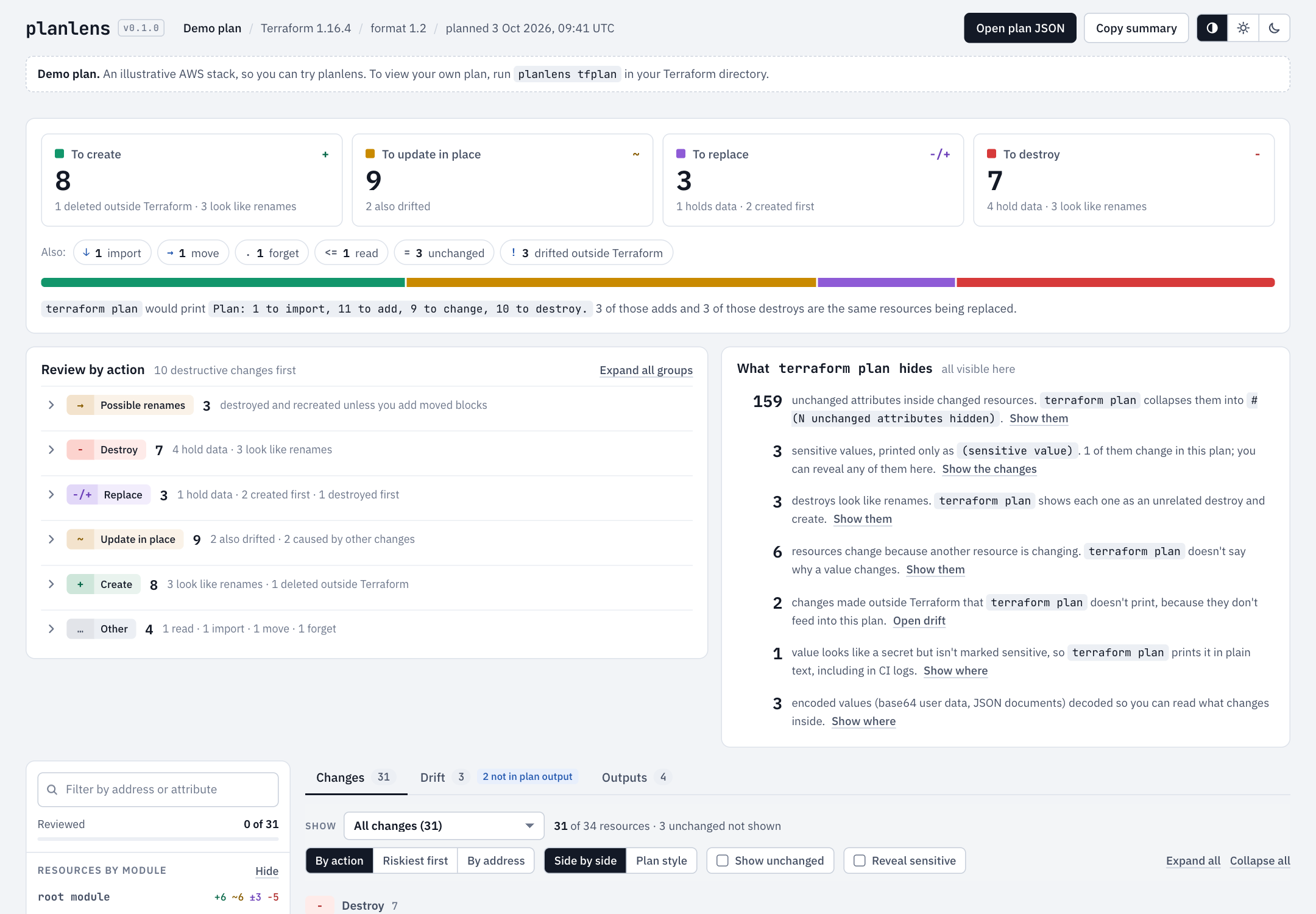
Four counts: to create, to update in place, to replace and to destroy. Each count notes what matters, such as how many hold data or look like renames. The colored bar shows the mix; clicking a tile or a bar segment filters the list below and scrolls to it.
Why it matters: terraform plan counts a replacement as both an add and a destroy. planlens counts replacements separately and shows the exact line Terraform would print, so you can compare.
What terraform plan hides
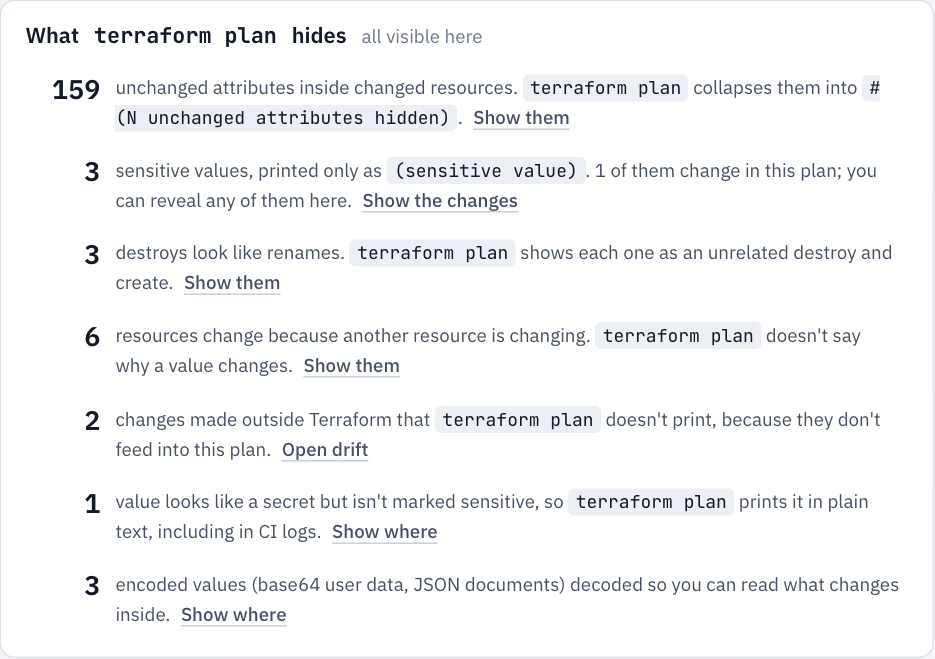
This panel lists everything in your plan that the text output leaves out or hides:
- collapsed attributes;
- sensitive values;
- likely renames;
- values that change because of another resource;
- drift Terraform doesn't print;
- unmarked secrets;
- encoded values.
Each line has a link to the resources it's about.
Review by action
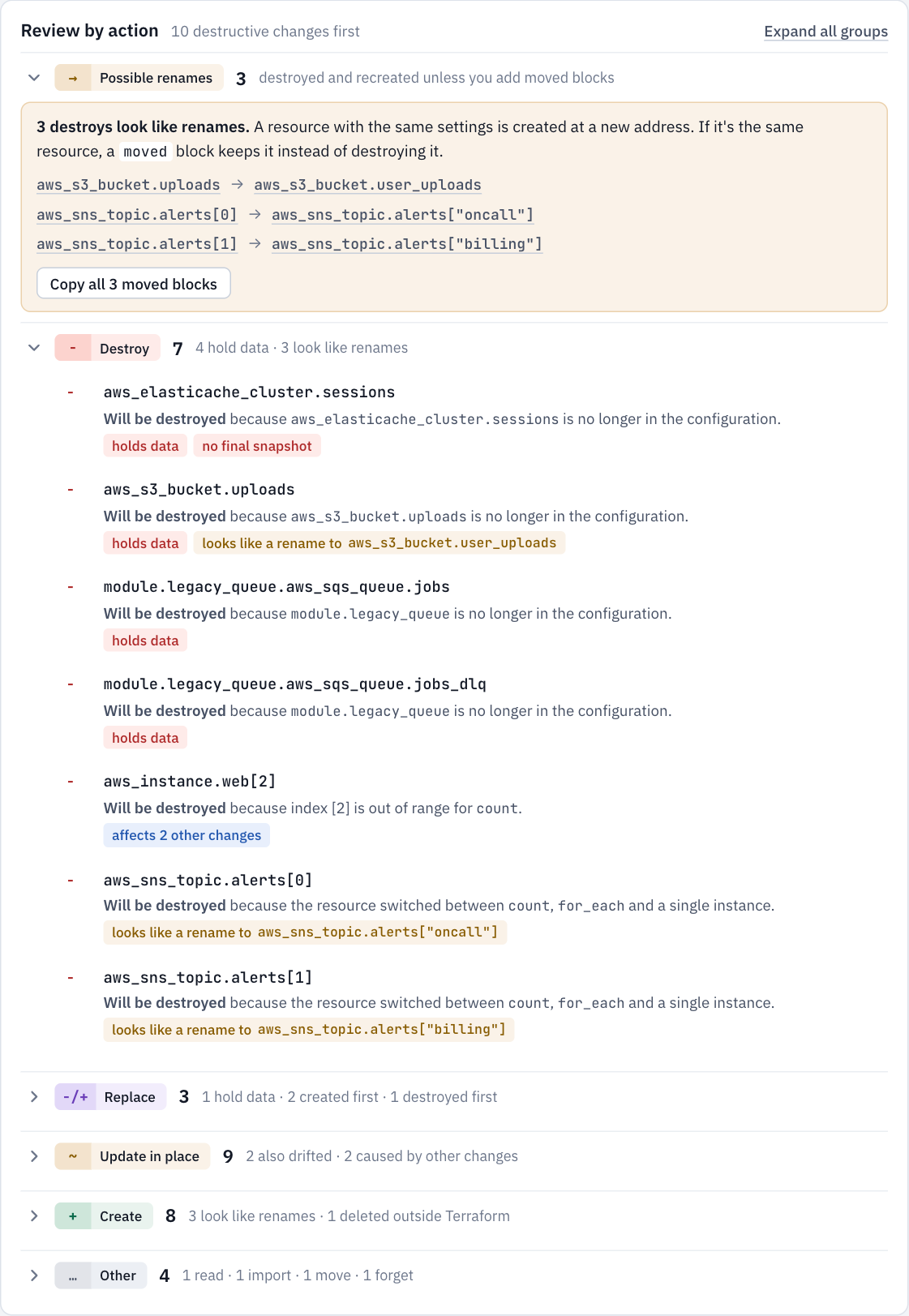
Every change, grouped: possible renames, destroy, replace, update in place, create, and other (read, import, move, forget). The groups start collapsed and each shows a count and a short note. Inside a group, resources that hold data come first, each with its reason and warnings.
Why it matters: the dangerous changes are together at the top, instead of scattered through hundreds of lines.
Filter what you see
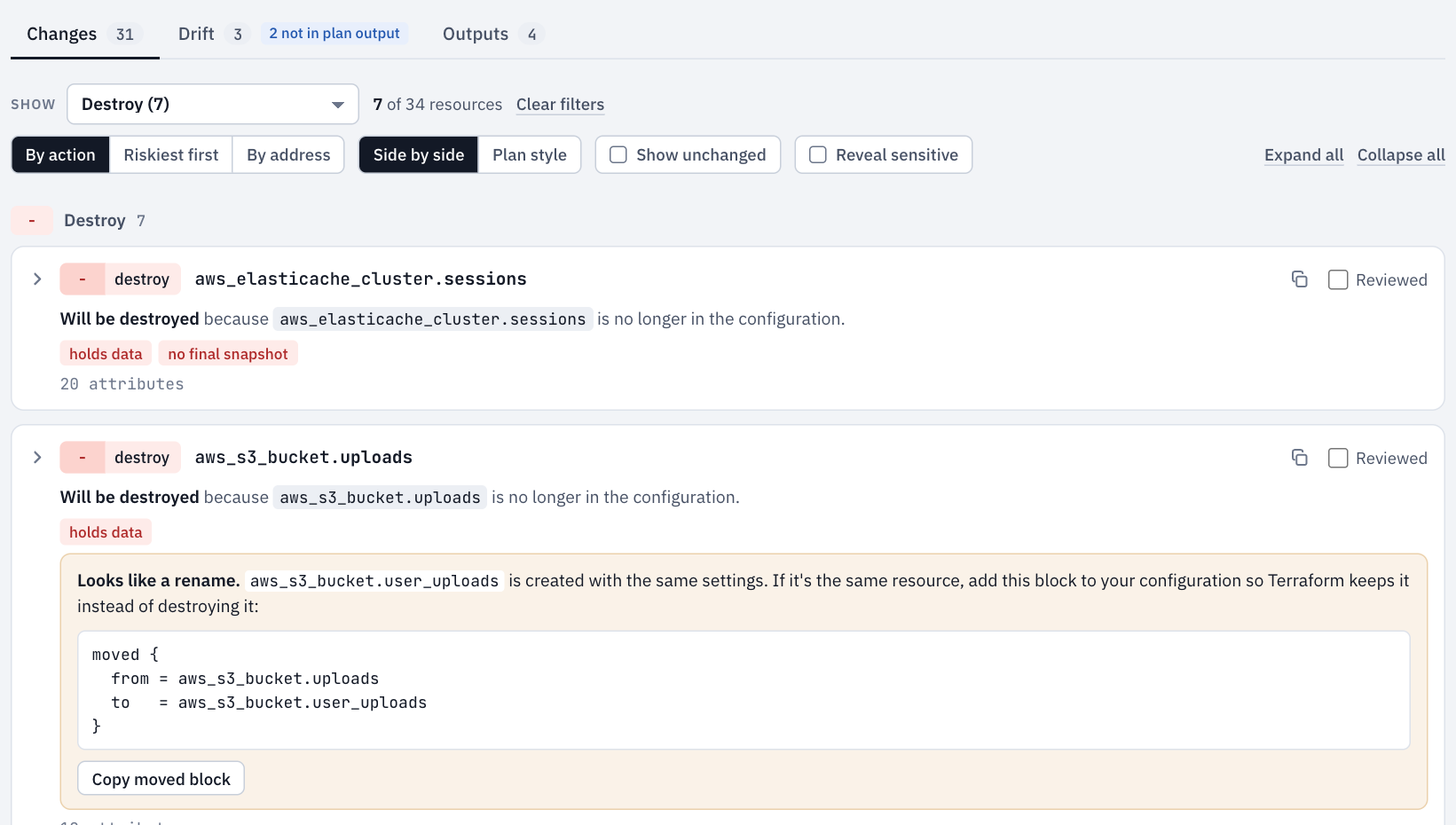
The Show dropdown above the list picks one kind of change, or Destroy and replace for everything destructive. It stays in sync with the summary tiles. The list is grouped by action; you can also sort by risk or by address. The search box filters by address or by attribute name; try tags to find every resource whose tags change.
Full diffs, nothing hidden
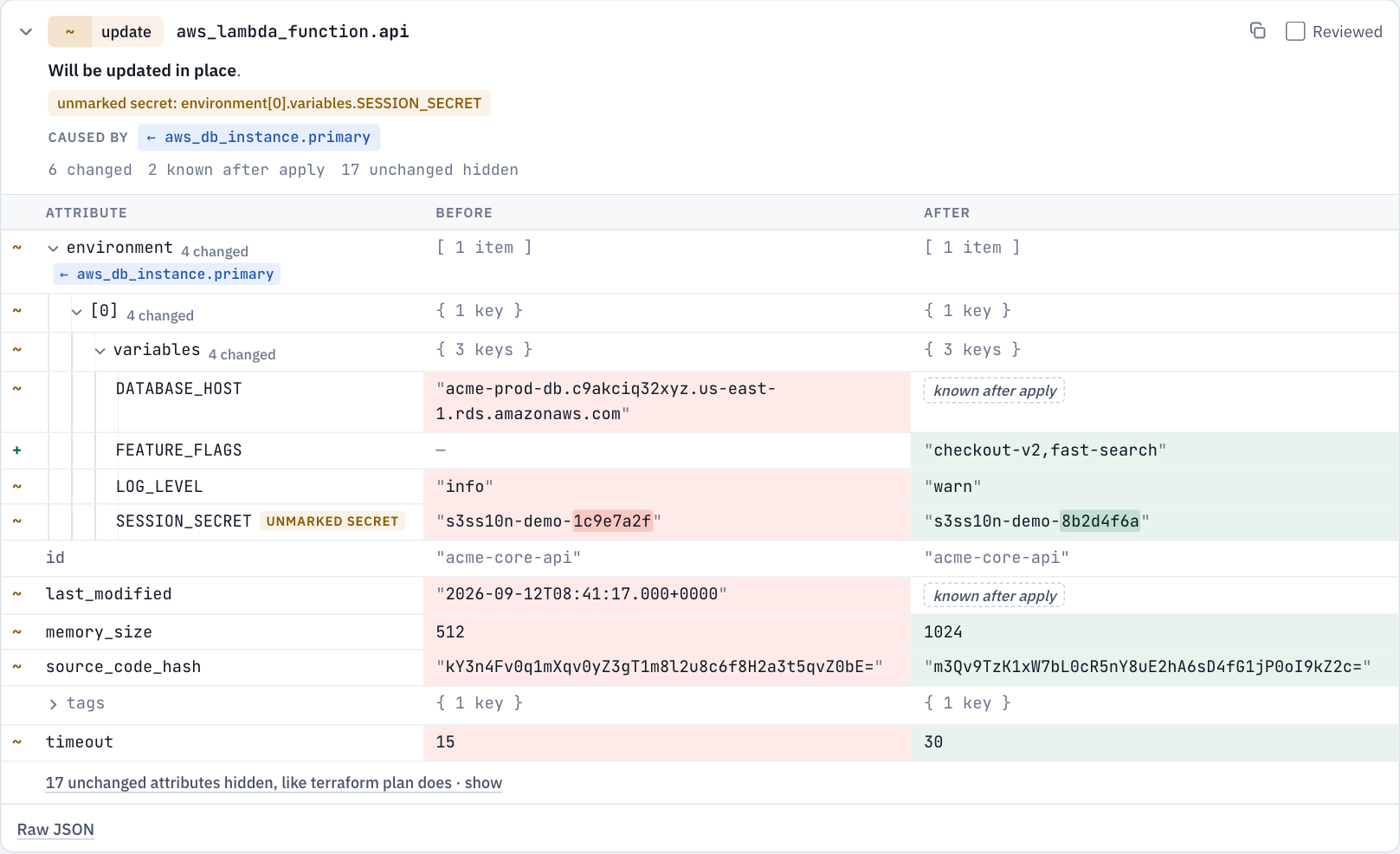
Every attribute, side by side:
- Changed parts of long strings are highlighted, so a one-character AMI change stands out.
- "Known after apply" is labelled clearly.
- Unchanged attributes are one click away: show on a card, Show unchanged for everything, or
u. - Nested blocks and lists can be expanded. Changed list items are paired with the item they replace, so one changed field shows as one change, not a remove and an add.
Plan style
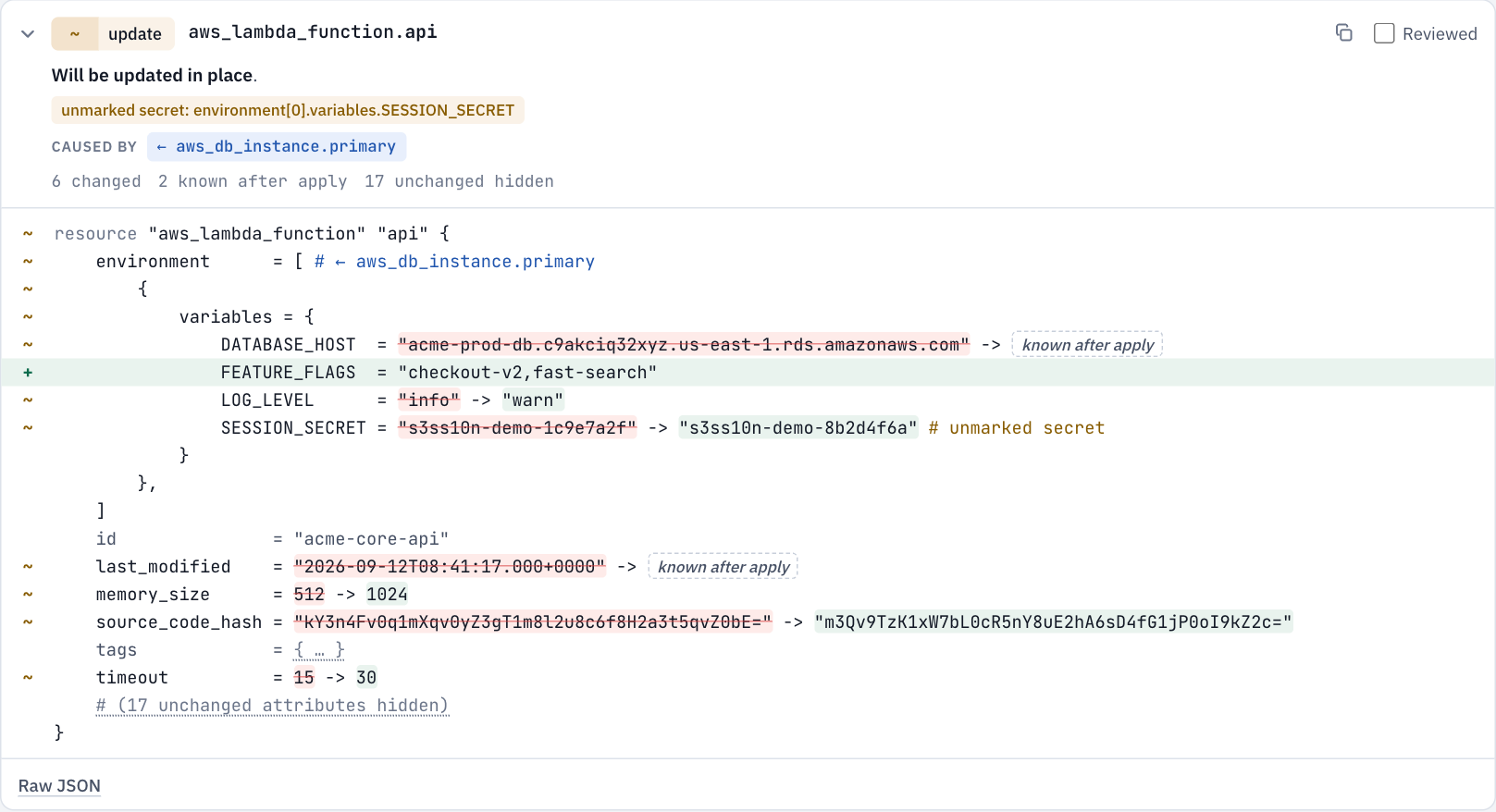
Prefer Terraform's own layout? Plan style shows each resource the way terraform plan does, with nothing hidden and the same notes and links.
Why values change
In the diff above, the Lambda's environment row is tagged ← aws_db_instance.primary. Its DATABASE_HOST becomes "known after apply" because the database it points to is being replaced. planlens reads the references recorded in your plan to show these links:
- ← resource: the value comes from another resource that's changing. Click to jump to it.
- from data source: the value comes from a data source, for example a new AMI from
data.aws_ami.web. - reverts manual change: someone changed this outside Terraform, and the plan sets it back.
Each card also lists what it Affects, so you can see the blast radius of a change.
Replacements and data loss
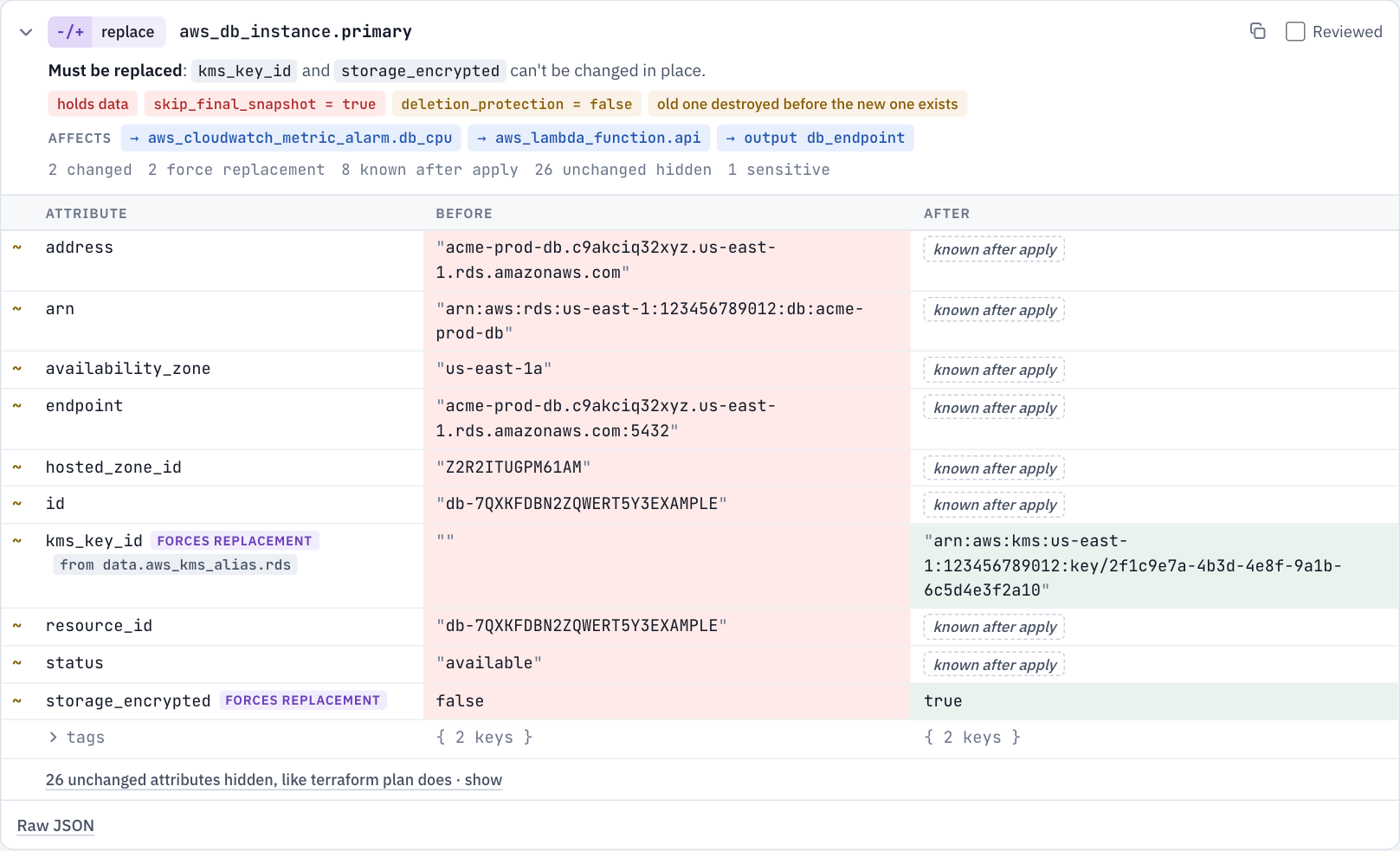
Each replacement says which attributes force it. Destructive changes get warnings:
- holds data: databases, buckets, queues, disks and other stateful resources;
skip_final_snapshot = true,deletion_protection = falseandforce_destroy = true;- old one destroyed before the new one exists: there will be a gap unless you use
create_before_destroy.
Possible renames
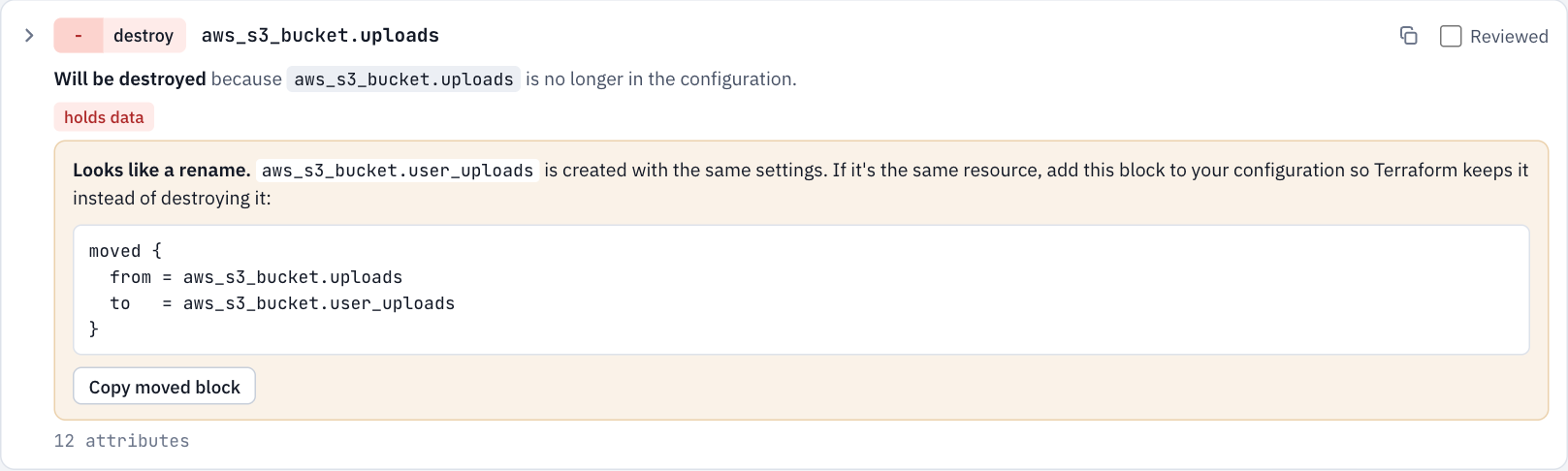
When a destroy and a create share the same type and settings, planlens flags a likely rename and gives you the moved block that keeps the resource. This also catches switching from count to for_each, where every instance would otherwise be recreated.
Why it matters: renaming a bucket or database without a moved block destroys it. The plan shows only an ordinary destroy and an ordinary create.
Sensitive values
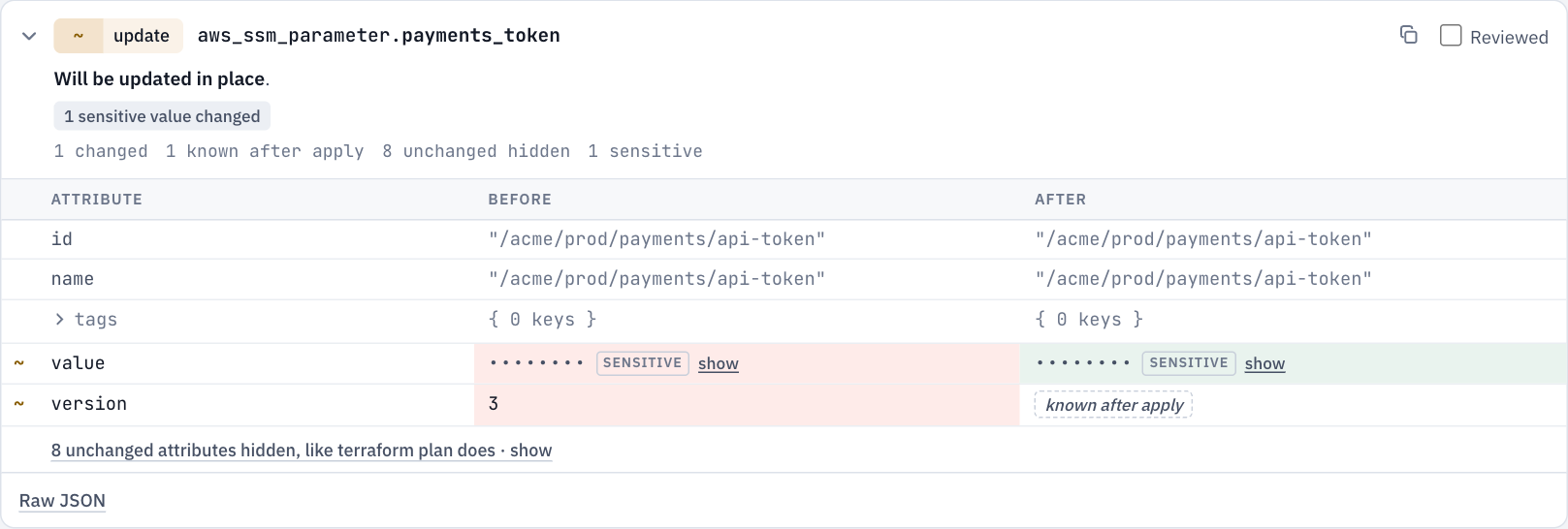
Sensitive values stay masked, like in terraform plan. Unlike terraform plan, you can reveal any one of them with show, or all of them with Reveal sensitive, and you can always see whether the value changed.
Decoded values
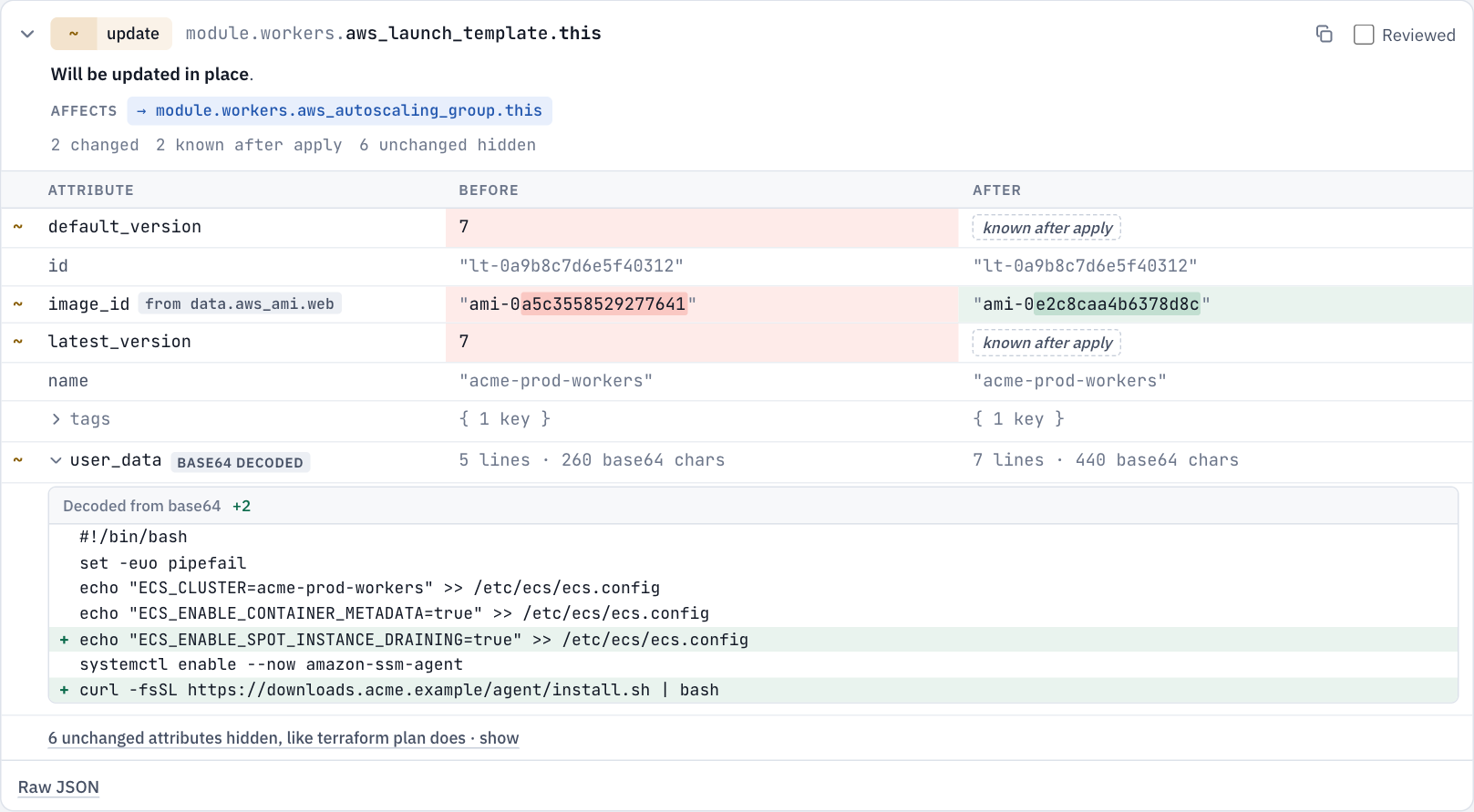
Base64 text such as user data is decoded and diffed line by line. The curl … | bash line added to this launch template is invisible in terraform plan, which prints two base64 blobs.
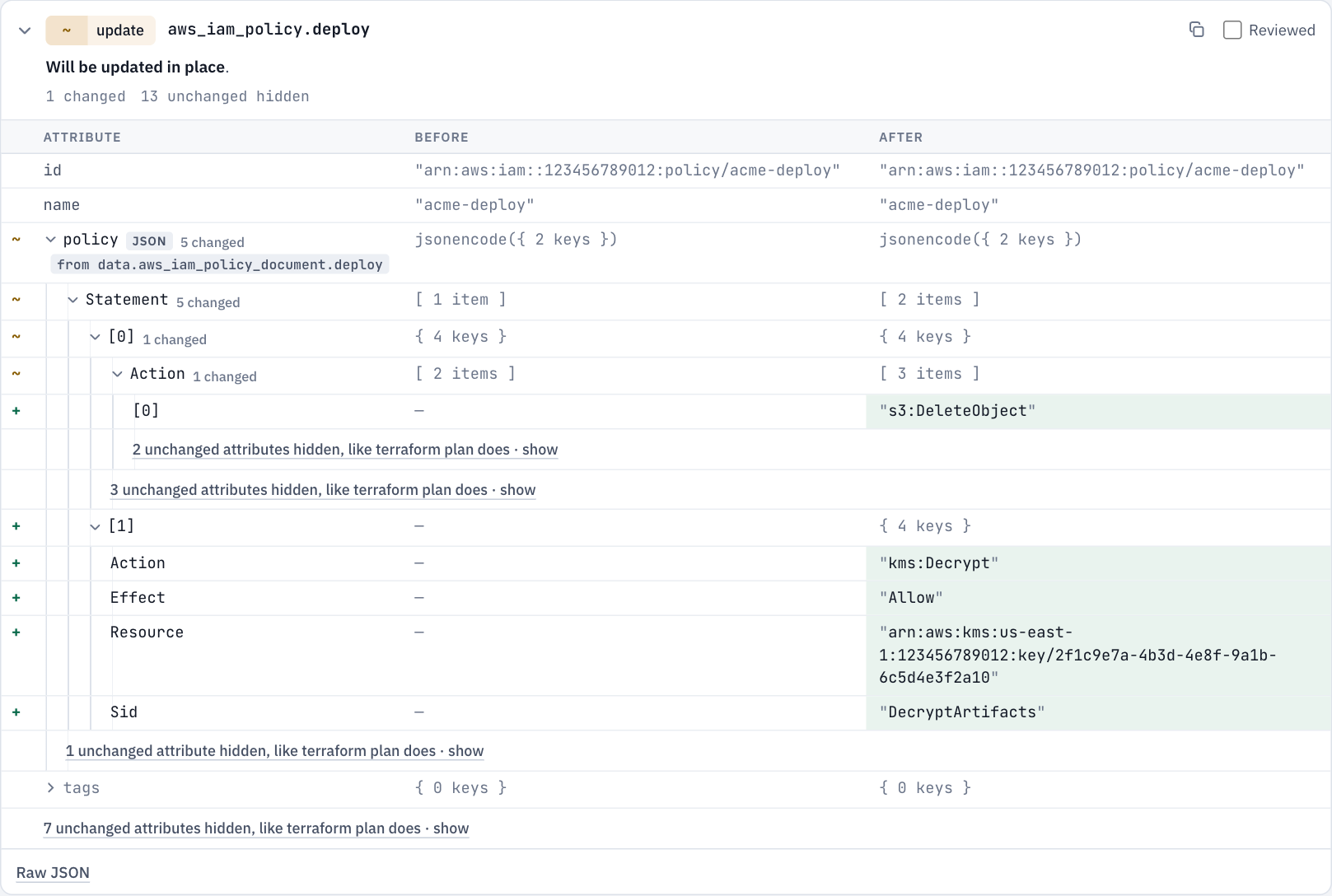
JSON documents such as IAM policies are diffed as structures, so an added action is one clear line. Multi-line strings, such as Helm values, are diffed line by line too.
Drift
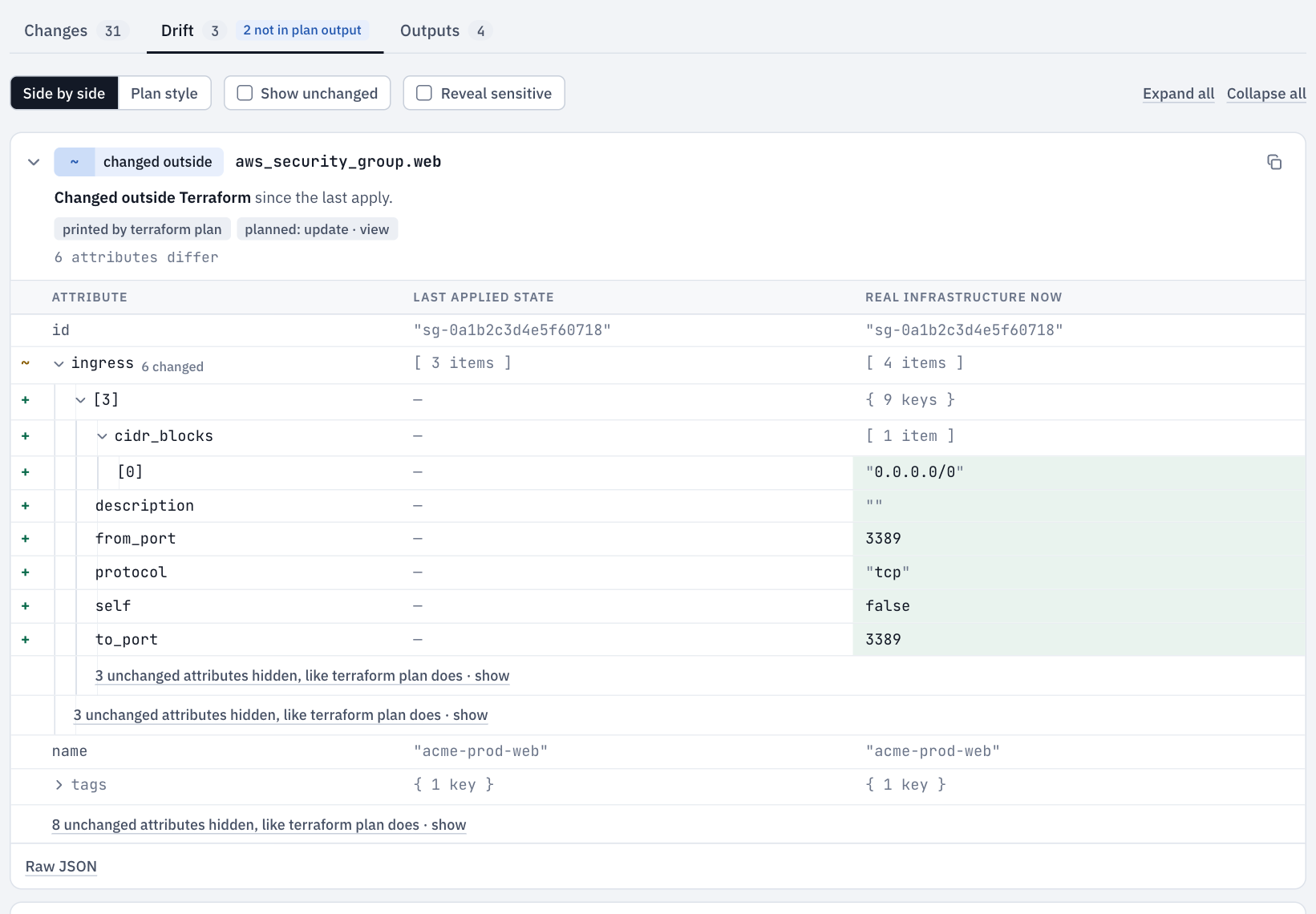
The Drift tab lists every change made outside Terraform since the last apply. Each one is marked printed by terraform plan or not printed by terraform plan, and links to the planned change.
Unmarked secrets
A value whose name looks like a secret, such as SESSION_SECRET, password or api_key, but that isn't marked sensitive gets an unmarked secret tag. terraform plan prints these in plain text, including into CI logs. Mark them sensitive in your configuration.
Dark mode
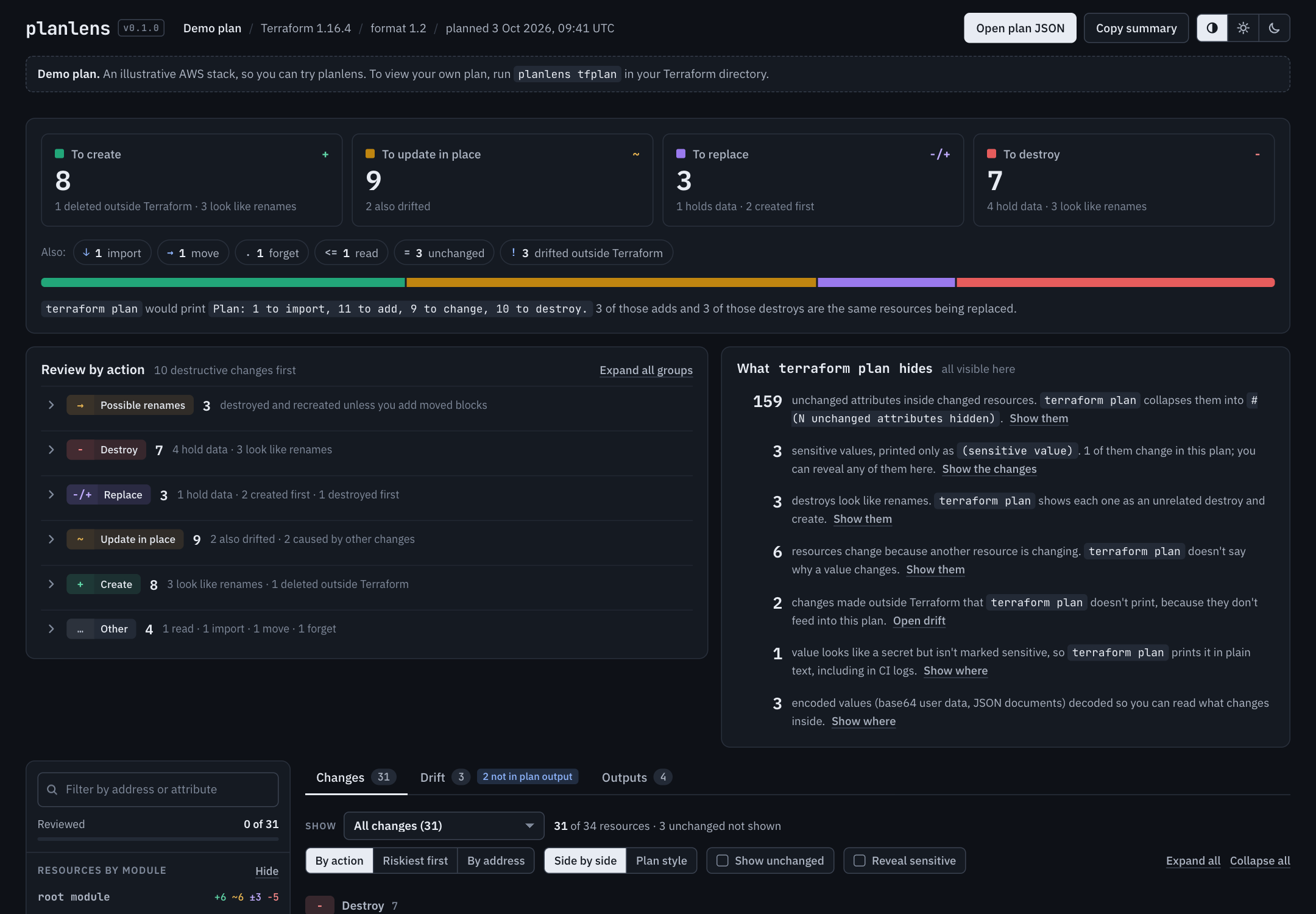
planlens follows your system theme. Use the switch in the top right to force light or dark.
Also
- Outputs tab: output values before and after, with sensitive outputs masked.
- Copy summary: a Markdown summary of the plan, ready to paste into a pull request.
- Raw JSON: each resource's change exactly as Terraform recorded it, with sensitive values masked.
- Review progress: stored in your browser, per plan.